- First download and install Open XML SDK 2.0 for Microsoft Office
- Open the installed program, mine was located at C:\Program Files (x86)\Open XML SDK\V2.0\tool\OpenXmlSdkTool.exe
- With the tool, open the desired word document that you want to generate with visual studio, temp.docx for example.
- Click on 'Reflect Code' on the top pane. Notice how there will be code generated on the right hand frame.
-
In Visual Studio, create a new console application project, name it for example HelloWord. Add a new empty class WordDoc.cs and copy the above generated code to this new class file.
Rename namespace to HelloWord and class to WordDoc. Here's how it looks like
-
Add the following two references
- C:\Program Files (x86)\Open XML SDK\V2.0\lib\DocumentFormat.OpenXml.dll
- WindowsBase from .NET (path: C:\Program Files (x86)\Reference Assemblies\Microsoft\Framework\v3.0\WindowsBase.dll)
-
add these two lines to the Main function
            WordDoc wd = new WordDoc();
            wd.CreatePackage(@"C:\temp\mydoc.docx");
Once you run the console, you should see mydoc.docx created in C:\temp.
Showing posts with label VSTO. Show all posts
Showing posts with label VSTO. Show all posts
Wednesday, 23 May 2012
How to create a word document with c# code


Monday, 14 May 2012
Infopath submit to list
Following from http://msdn.microsoft.com/en-us/library/cc162745(v=office.12).aspx
Project and EmailType list will be populated with entries from InfoPath.
Below I have for Project, AddProjectTemplate(1), TestProject(2), Web Service Submit Proj (3).
Similiarly for EmailSequence, AddEmailSequenceTemplate(1), TestEmailSequence(2), Web Service Submit(3)

FormCode.cs
Project and EmailType list will be populated with entries from InfoPath.
So each list will require data connections of
- Template in xml format for retrieving data
- Retriving data from the SharePoint list
- Submit data type to the _vti_bin/lists.asmx service of the SharePoint site
Below I have for Project, AddProjectTemplate(1), TestProject(2), Web Service Submit Proj (3).
Similiarly for EmailSequence, AddEmailSequenceTemplate(1), TestEmailSequence(2), Web Service Submit(3)
FormCode.cs
using Microsoft.Office.InfoPath;
using System;
using System.Windows.Forms;
using System.Xml;
using System.Xml.XPath;
using mshtml;
namespace MyEmailType
{
public partial class FormCode
{
public void InternalStartup()
{
EventManager.XmlEvents["/my:myFields/my:AddEmailType"].Changed += new XmlChangedEventHandler(AddEmailType_Changed);
((ButtonEvent)EventManager.ControlEvents["btnSubmit"]).Clicked += new ClickedEventHandler(btnSubmit_Clicked);
((ButtonEvent)EventManager.ControlEvents["btnCancel"]).Clicked += new ClickedEventHandler(btnCancel_Clicked);
}
public void AddEmailType_Changed(object sender, XmlEventArgs e)
{
try
{
// Get a reference to the form's XmlNamespaceManager object.
XmlNamespaceManager ns = this.NamespaceManager;
// Create an XPathNavigator object for the form's main data
// source.
XPathNavigator xnDoc = this.MainDataSource.CreateNavigator();
// If the check box is set to true, add a new row so the user
// can add a new contact.
if (e.Site.Value == "true")
{
XPathNavigator xnTable = xnDoc.SelectSingleNode("/my:myFields/my:gpEmailTypes", ns);
xnTable.AppendChild("
AddEmailSequenceTemplate.xml
<Batch OnError="Continue">
    <Method ID="1" Cmd="New">
        <Field Name='Title'></Field>
        <Field Name="EmailType"></Field>
        <Field Name="SeqFrom"></Field>
        <Field Name="SeqTo"></Field>
        <Field Name="ID"></Field>
    </Method>
</Batch>
AddProjectTemplate.xml is similiar to above except with only Title and ID
Friday, 17 February 2012
Sharepoint 2010: Load parent page to new URL after Item Added
I was assigned a task for users to be redirected to a page when the new item dialog closes, after figuring things out for 2 days and trawling through google. This is what I came up with.
The following code will show an Add New Item link, and when the user clicks on the added new URL, he/she will be redirected to that new page in the parent window.
The following code will show an Add New Item link, and when the user clicks on the added new URL, he/she will be redirected to that new page in the parent window.
Add New Item
Wednesday, 11 January 2012
Raising an event when user clicks send button in outlook
When user clicks on Send, the following has to be added in ThisAddIn_Startup if you wish to handle the event,
Then you will continue to add the implementation for
Application.ItemSend +=
new Outlook.ApplicationEvents_11_ItemSendEventHandler(Application_ItemSend);
Then you will continue to add the implementation for
Application_ItemSend(object Item, ref bool Cancel)Tuesday, 10 January 2012
Setting Outlook subject field from a Ribbon control
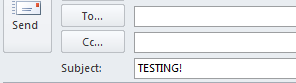
The idea is that, when the Ribbon button is clicked, the subject field will be filled.

Outlook.Inspector inspector = Globals.ThisAddIn.Application.ActiveInspector();
if (inspector.CurrentItem is Outlook.MailItem)
{
    Outlook.MailItem om = (Outlook.MailItem)inspector.CurrentItem;
    om.Subject = "TESTING!";
}
Subscribe to:
Posts (Atom)